A file you need is sitting on your home computer: a tax document, a project folder, a photo archive, or the latest export from your editing workstation. You are away from home, and the old answer is to open a router port, set up a VPN, or copy everything into a cloud drive first. None of those should be the default.
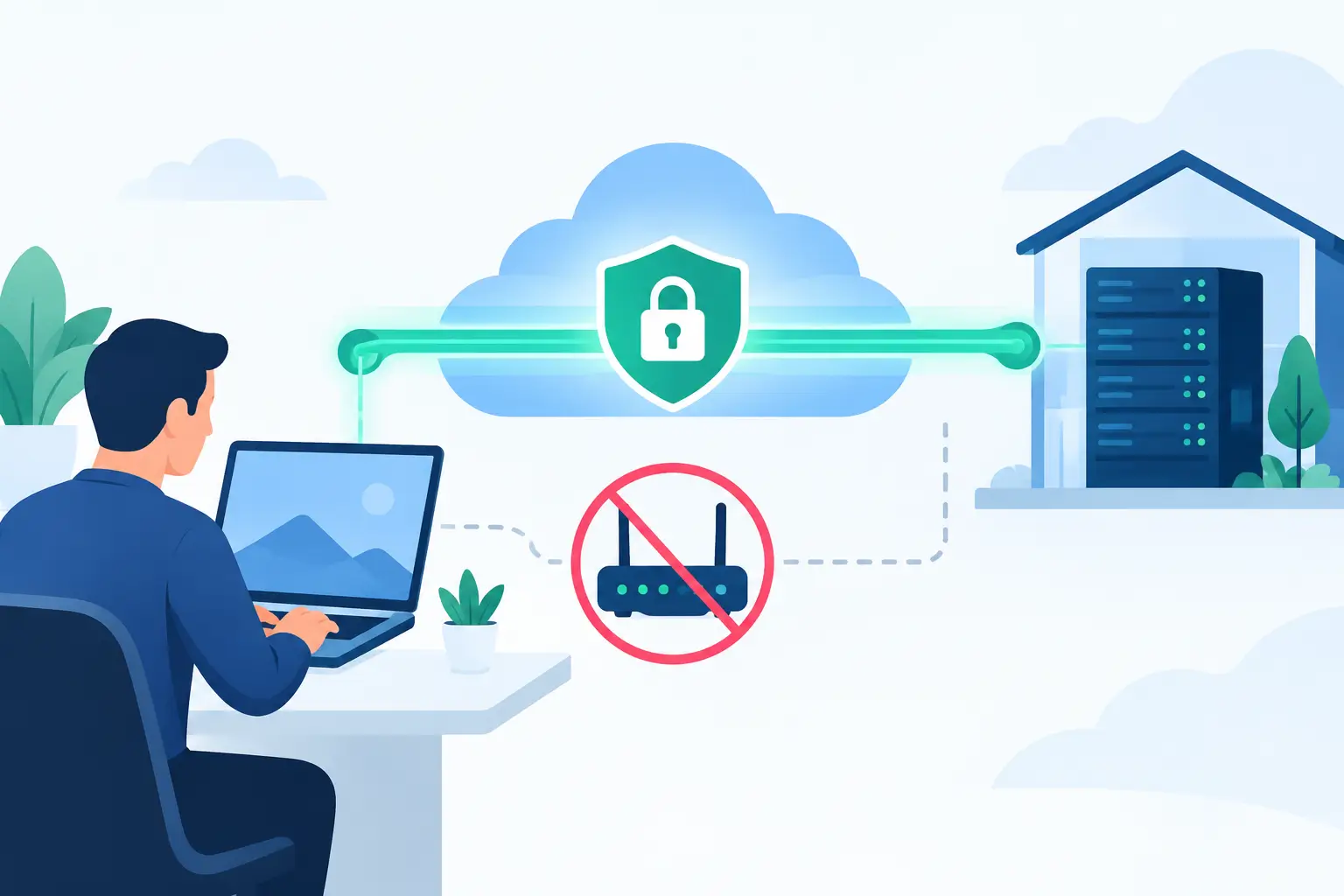
Remote access without port forwarding makes it possible to reach files on your own computer without publishing a service to the public internet. The computer remains the source of truth. Your router does not need a manually exposed port. And the file does not need to be stored by a cloud provider just to be available elsewhere.
Why port forwarding was the old answer
Home networks are designed to block unsolicited inbound connections. Your router assigns private addresses to devices inside the home, then translates their outbound traffic to a public internet address. A computer outside your network cannot normally initiate a connection back to a laptop or desktop behind that router.
Port forwarding changes that rule. You configure the router to send traffic arriving on a chosen public port to one device on the local network. It works, but it also creates an internet-facing entry point that must be maintained. You need to know the correct local IP address, account for changing public IPs, keep the exposed software patched, and understand what service is listening.
For a managed business network, that work may be appropriate. For retrieving a folder from a personal computer, it is often too much infrastructure for a simple job.
A VPN avoids publicly exposing a file-sharing port, but it introduces its own setup and support burden. Someone must host the VPN endpoint, configure client devices, manage credentials, and troubleshoot networks that block VPN traffic. Dynamic DNS solves only the changing-address problem. It does not remove the need to expose a service.
How remote access without port forwarding works
The alternative is not magic. It relies on connection methods built into modern networking and browsers.
A direct connection system starts with both devices making outbound connections. Your computer checks in with a service to say that it is available. Your phone or browser signs in and requests that computer. The service verifies the account and helps the two endpoints learn how they may be reachable.
Because both sides initiate outbound traffic, the router can create temporary connection mappings without a permanent inbound rule. This process is commonly handled with ICE and STUN when using WebRTC.
ICE and STUN handle discovery
STUN helps a device learn the public address and port mapping its router has assigned for an outbound connection. ICE, short for Interactive Connectivity Establishment, tests possible paths between two endpoints and selects one that works.
The point is not to bypass a firewall. Each device still follows the rules of its network. Instead, the devices use outbound connectivity and temporary NAT mappings to establish a direct path when their networks permit it.
That is why no static IP address or dynamic DNS name is required. The connection setup service can introduce authenticated devices without treating your home network as a public server.
A setup service is not a file host
This distinction matters for privacy. A service can participate in account authentication, device discovery, and connection signaling without receiving or storing the files themselves.
With a direct peer-to-peer design, file data travels between your computer and the browser or phone requesting it. The setup service helps the devices find each other, then steps out of the file path. It does not become a second copy of your folder.
Plypad Files uses this model: authenticated device introduction and WebRTC connection setup, with file contents sent directly between your computer and your signed-in device. Plypad does not store your files or pass them through its infrastructure.
What the setup looks like in practice
For most people, the useful workflow is short. Install a desktop application on the computer that holds the files, choose the folder you want to make available, and connect that computer to your account. Then sign in from another browser or phone when you need access.
The selected folder stays on the original machine. You can browse it remotely, preview supported files, upload a file back to it, download an individual item, or download a full folder as a ZIP archive. Available disk space remains your storage limit, rather than a subscription tier imposed by a hosted drive.
Choosing one specific folder is also a practical security boundary. It is easier to understand than granting remote access to an entire computer or mounting a full network drive on every device. You decide what is available before you leave home.
This approach fits documents, personal media, client assets, schoolwork, and working files that already live on a desktop. It is less suited to applications that require remote control of the computer itself, complex shared editing workflows, or a central team repository with many simultaneous contributors.
Security depends on more than avoiding an open port
Not forwarding a port reduces exposure, but it does not make security automatic. Remote file access still needs strong account authentication, encrypted transport, narrow permissions, and clear handling of device access.
WebRTC uses DTLS to encrypt data in transit between peers. In a direct connection model, the encrypted file stream moves from your computer to the device you signed in on. A connection setup server may see limited metadata necessary to introduce devices, but it does not inspect file contents if it is not in the data path.
The desktop application should also avoid listening on a publicly reachable network interface. A loopback-only local listener, if one is used for application coordination, accepts connections only from the same computer. That is different from hosting a file server on your LAN or opening a router port to it.
Your account remains a critical boundary. Use a unique password, secure the email address associated with the account, sign out of shared devices, and remove access from devices you no longer use. Encryption protects data while it travels; it cannot protect files from someone already signed in to your account or using an unlocked computer.
The constraints are real
Direct access is not the same as hosted cloud storage. Your computer must be powered on, connected to the internet, and awake enough to run the desktop application. If it is shut down, sleeping, or disconnected, the folder is unavailable.
Transfer performance depends heavily on the upload speed of the network where the computer lives. A fast download connection at home does not guarantee fast uploads. A large video file may take time to leave a residential internet connection, particularly if other people are using that connection.
Direct peer-to-peer connectivity can also fail on restrictive networks. Some corporate, hotel, school, cellular, or carrier-grade NAT environments do not allow the necessary peer connection path. Systems that use relay servers can improve reachability by passing traffic through an intermediary, but that changes the privacy and performance model. A service with no fallback relay is candidly making a trade-off: it will not route your file through its infrastructure when a direct path cannot be established.
Finally, remote access is not backup. If a drive fails, a file is deleted, or ransomware affects the host computer, a remote access tool cannot recover data that no longer exists. Keep separate backups for anything you cannot replace.
Choose the model that matches the job
Use hosted cloud storage when you want files continuously copied to a provider-managed service, need broad collaboration, or want access even while your own computer is off. Use a VPN or remote desktop when you need access to an entire private network or need to operate software on the remote machine.
Choose direct remote file access when your goal is narrower: reach a folder you control, from your own devices, without putting its contents into another company’s storage system or configuring your router. It removes a category of networking work while keeping the operational facts visible.
The useful question is not whether a file can be reached from anywhere. It is where that file lives, who carries it during transfer, and what has to stay running for access to work. For many personal folders, local storage plus a direct connection is the cleanest answer.
Plypad Files is free for Windows, macOS and Linux.
Get Plypad Files