A forgotten tax PDF should not require opening your home network to the internet. Neither should a client file, a school project, or the photos stored on your desktop. The practical question is how to access files remotely without VPN while keeping the computer and its files under your control.
A VPN is one answer, but it is not the only answer and often not the simplest one. It extends your remote device into your home network. That can be useful when you need access to several devices, internal services, or an entire office network. If you only need one folder from one computer, it can be more access than you need to create and maintain.
Remote file access without a VPN works best when the system is designed for a narrower job: authenticate the person, find the computer, establish an encrypted direct connection, and expose only the folder you chose.
What remote access without a VPN actually means
Without a VPN does not mean without security. It means you are not creating a virtual network connection between your phone or laptop and every reachable device on your home LAN.
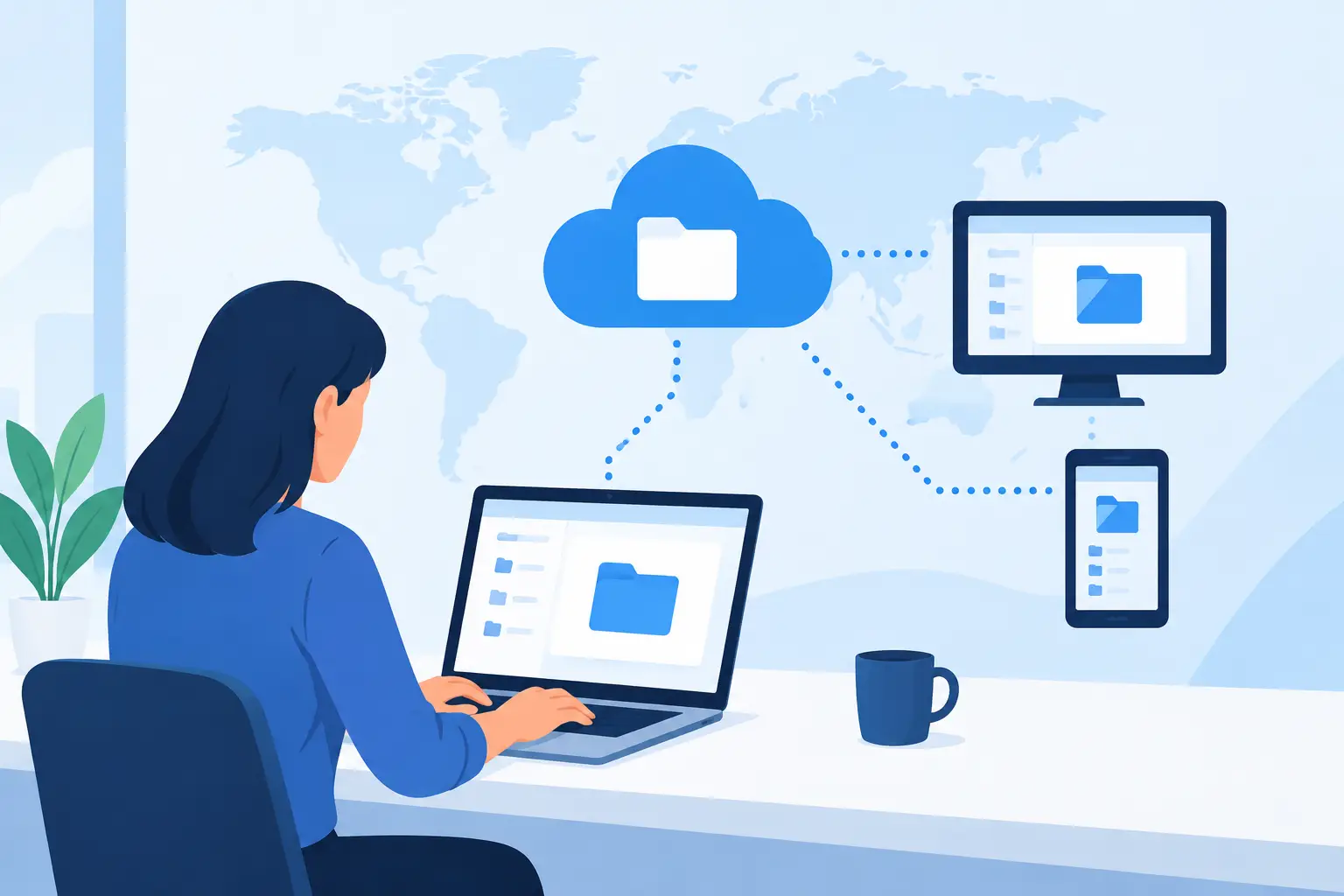
Instead, a remote file-access service can connect a signed-in browser or phone directly to a specific computer. You select the folder that should be available, then use a web interface to browse, preview, upload, download, or retrieve an entire folder as a ZIP file. The rest of the computer is not automatically available.
This distinction matters. A VPN is a network-level tool. Remote folder access is an application-level tool. The right choice depends on the scope of access you need.
If you administer a home server, need remote desktop access, or regularly work with network shares and printers, a VPN may still be appropriate. If your goal is to retrieve files from one personal computer without router changes, a dedicated file-access approach is usually easier to operate and easier to limit.
The simple model: computer, account, browser
A well-designed no-VPN setup has three parts. Your computer holds the files. Your account confirms that it is you. Your browser or phone becomes the remote window into the folder.
The computer runs a small desktop application and stays signed in. You choose one local folder rather than granting broad access to the disk. When you are away, you sign into the same account from another device and request a connection to that computer.
The service can help the two devices find each other and negotiate a connection. That coordination step does not have to mean the service stores or transports your files. The architecture matters here. Some services route file traffic through their own servers. Others use those servers only for authenticated device discovery and connection setup, then send file data directly between your device and computer.
Plypad uses the latter model. Its desktop app turns one selected folder on a Windows, macOS, or Linux computer into a browser-accessible file service. Files remain on the computer. The account service introduces the devices, but it does not store file contents or relay them during a transfer.
How to access files remotely without VPN in four steps
The workflow should be short because remote access is most useful when you need something now.
1. Pick the folder, not the whole machine
Start by deciding what genuinely needs to travel with you. For many people, that is a Documents folder, a client-project folder, a media library, or a dedicated shared workspace.
Creating a purpose-built remote folder is often safer than selecting a broad home directory. It reduces accidental exposure and makes the remote view easier to navigate. Keep sensitive files outside that folder unless you need them available remotely.
2. Install the desktop app on the source computer
Install the file-access app on the computer where the files live, sign in, and link the selected folder to your account. This computer remains the source of truth. It is not copying your folder into a hosted storage plan.
That difference affects both privacy and capacity. Available storage is determined by your own disk, not a provider quota. But it also means the source computer must be on and able to connect when you need a file.
3. Sign in from the device you have with you
From a browser or phone, sign into the same account and select the linked computer. You should see only the folder the desktop app was configured to share.
At this point, a useful remote file interface lets you inspect folders, preview supported files, download individual items, upload files back to the computer, and download a full folder as a ZIP archive. A browser-based interface avoids installing a client on every borrowed or secondary device, though you should still sign out on devices that are not yours.
4. Transfer only what you need
Download the document, upload the revised version, or retrieve the project folder. When finished, close the session and sign out where appropriate.
This is a small operational habit, but it matters. Remote access should be available when needed, not treated as a reason to leave sensitive files open on shared computers.
The network details worth checking
“Direct connection” is a claim worth understanding. A useful implementation commonly relies on WebRTC, the same family of browser technologies used for real-time peer-to-peer communication. WebRTC uses ICE to test possible paths between devices and STUN to help each side discover how it appears from outside its local network.
In a direct model, the discovery service helps establish the connection but does not become the route for file traffic. If a direct peer-to-peer path cannot be established, the connection should fail rather than quietly falling back to a relay that carries your data. That is a meaningful boundary for people who want their files to stay off service infrastructure.
Encryption matters too. WebRTC connections use DTLS to encrypt data in transit between peers. That protects file traffic from interception across the network path. It does not eliminate the need for account security, device security, or careful folder selection. Encryption protects the connection; it cannot fix a compromised computer or a weak password.
You should also look for a design that avoids an internet-facing local file server. A desktop app can listen only on loopback, meaning it accepts local connections from the computer itself rather than exposing a port to the wider network. Combined with outbound connection setup, this removes the usual need for port forwarding, a static IP address, or dynamic DNS.
What you give up compared with a VPN or cloud drive
No-VPN file access is deliberately narrower than a VPN. You cannot assume it will reach every network device or run every internal application. That limitation is also part of its safety model.
It is not a backup, either. If the source computer fails, is stolen, or has a disk problem, remote access cannot recover files that no longer exist. Keep separate backups for files you cannot replace. Local control and backup are different jobs.
Availability depends on the source computer. It needs power, an internet connection, and a sleep setting that does not put it offline. A laptop closed in a bag at home is not a reliable remote file server. For a desktop, review sleep settings before relying on access during travel.
Speed depends heavily on the upload capacity of the network where the source computer lives. Downloading a large video file from a home connection can be much slower than downloading the same file from a commercial cloud provider with high-bandwidth infrastructure. Direct transfer is a privacy and control choice, not a promise of maximum throughput.
Some network environments can also block or restrict peer-to-peer connectivity. Corporate, school, hotel, or highly locked-down networks may prevent a direct connection. A system with no relay fallback will not work in every network condition, but it is clearer about where file data does and does not travel.
Set it up before you need it
The best test is not the first time you are stranded at an airport. Configure the folder while you are at home, then try accessing it from a phone on cellular data and from a browser outside your home Wi-Fi. Confirm that you can find a file, download it, and upload a harmless test file back.
Then check the ordinary things that decide whether remote access is useful: the computer stays awake, the account is protected with a strong unique password, and the selected folder contains only what you intend to expose. Your folder can stay on your computer and still be available when you are not.
Plypad Files is free for Windows, macOS and Linux.
Get Plypad Files